

If you’re looking to use MCP tools within Intellos workflows & agents, see here.
Configure Your Intellos App as an MCP Server
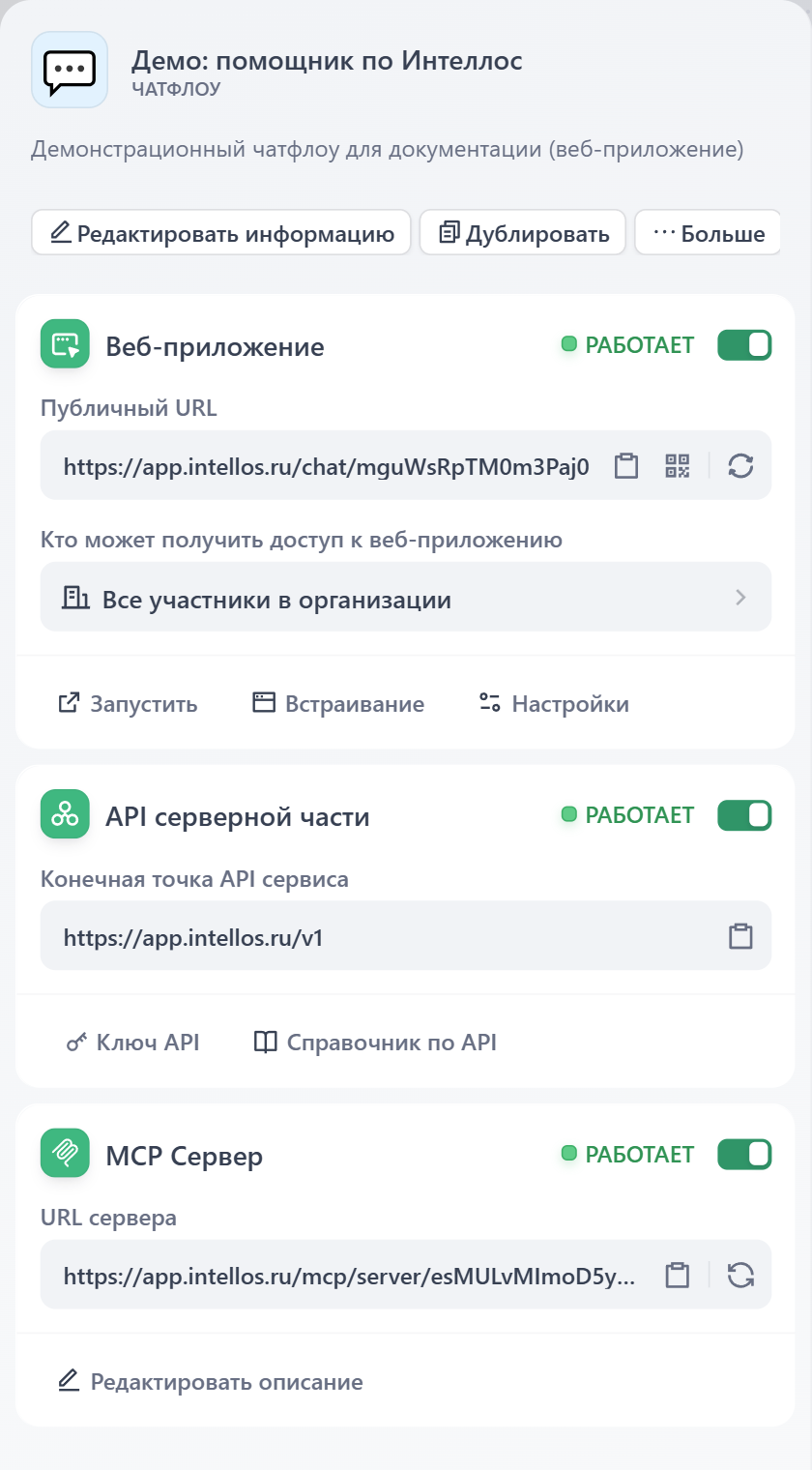
Navigate to your application’s configuration interface in Intellos, you’ll find an MCP Server configuration module. The feature is disabled by default. When you toggle it on, Intellos generates an unique MCP Server address for your application. This address serves as the connection point for external tools.Your MCP Server URL contains authentication credentials, so treat it like an API key. If you suspect it’s been compromised, use the regenerate button to create a new URL. The old one will immediately stop working.
Integration with Claude Desktop
To connect your Intellos app to Claude Desktop, you’ll need to add a Claude integration. Go to your Claude Profile > Settings > Integrations > Add integration. Replace the Integration URL with your Intellos app’s Server URL.Integration with Cursor
For Cursor, create or edit the.cursor/mcp.json file in your project root:
mcpServers object.
Practical Considerations
- Descriptiveness When designing descriptions for your tool and its input parameters, think about how an AI would interpret them. Clear, specific descriptions lead to better invocations. Instead of “input data,” specify “JSON object containing user profile with required fields: name, email, preferences.”
- Latency The MCP protocol handles the communication layer, but your Intellos app’s performance still matters. If your app typically takes 30 seconds to process, that latency will be felt in the client application. Consider adding progress indicators or breaking complex workflows into smaller, faster operations.