

Bring Your Own Keys
You connect model providers using your own API keys for direct access to providers like OpenAI, Anthropic, or Google. You get full control over your credentials and billing directly through each provider. You can also configure multiple credentials per provider and set up load balancing across them.Configure Providers
Only workspace admins and owners can configure model providers. The process is consistent across providers:1
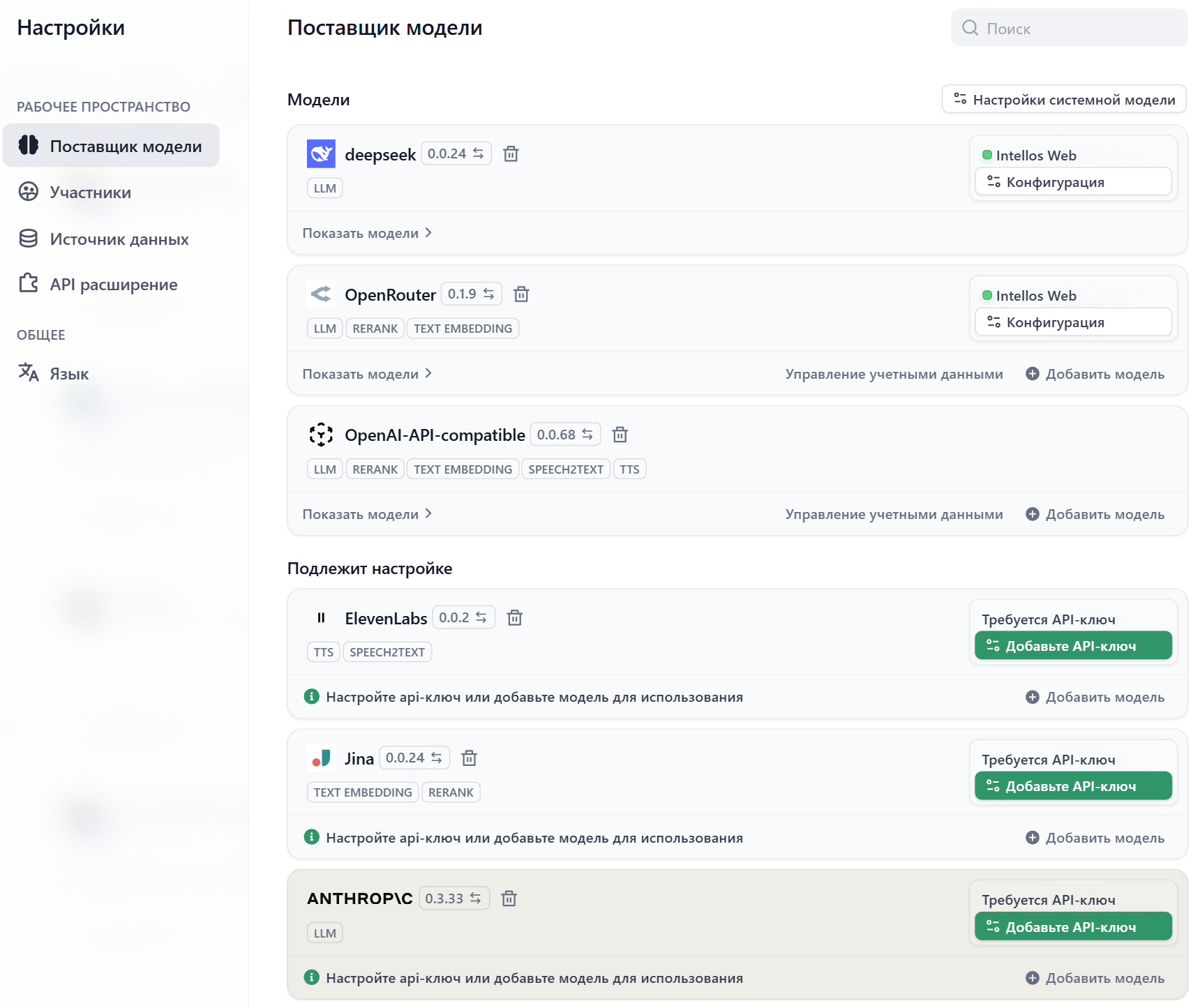
Navigate to Settings → Model Providers
Access the model provider configuration in your workspace settings.
2
Select your provider
Choose from OpenAI, Anthropic, Google, Cohere, or other supported providers.
3
Add credentials
Enter your API key and any additional configuration required by the provider.
4
Test and save
Intellos validates your credentials before making the provider available to your workspace.
Supported Providers
Large Language Models:- OpenAI (GPT-4, GPT-3.5-turbo)
- Anthropic (Claude)
- Google (Gemini)
- Cohere
- Local models via Ollama
- OpenAI Embeddings
- Cohere Embeddings
- Azure OpenAI
- Local embedding models
- Image generation (DALL-E, Stable Diffusion)
- Speech (Whisper, ElevenLabs)
- Moderation APIs
Provider Configuration Examples
- OpenAI
- Anthropic
- Local (Ollama)
Required: API Key from OpenAI PlatformOptional: Custom base URL for Azure OpenAI or proxies, Organization ID for organization-scoped usageAvailable Models: GPT-4, GPT-3.5-turbo, DALL-E, Whisper, Text embeddings
Manage Model Credentials
Add multiple credentials for a model provider’s predefined and custom models, and easily switch between, delete, or modify these credentials. Here are some scenarios where adding multiple credentials is particularly helpful:- Environment Isolation: Configure separate model credentials for different environments, such as development, testing, and production. For example, use a rate-limited credential in the development environment for debugging, and a paid credential with stable performance and a sufficient quota in the production environment to ensure service quality.
- Cost Optimization: Add and switch between multiple credentials from different accounts or model providers to maximize the use of free or low-cost quotas, thereby reducing application development and operational costs.
- Model Testing: During model fine-tuning or iteration, you may create multiple model versions. By adding credentials for these different versions, you can quickly switch between them to test and evaluate their performance.
- Predefined Model
- Custom Model
After installing a model provider and configuring the first credential, click Config in the upper-right corner to perform the following actions: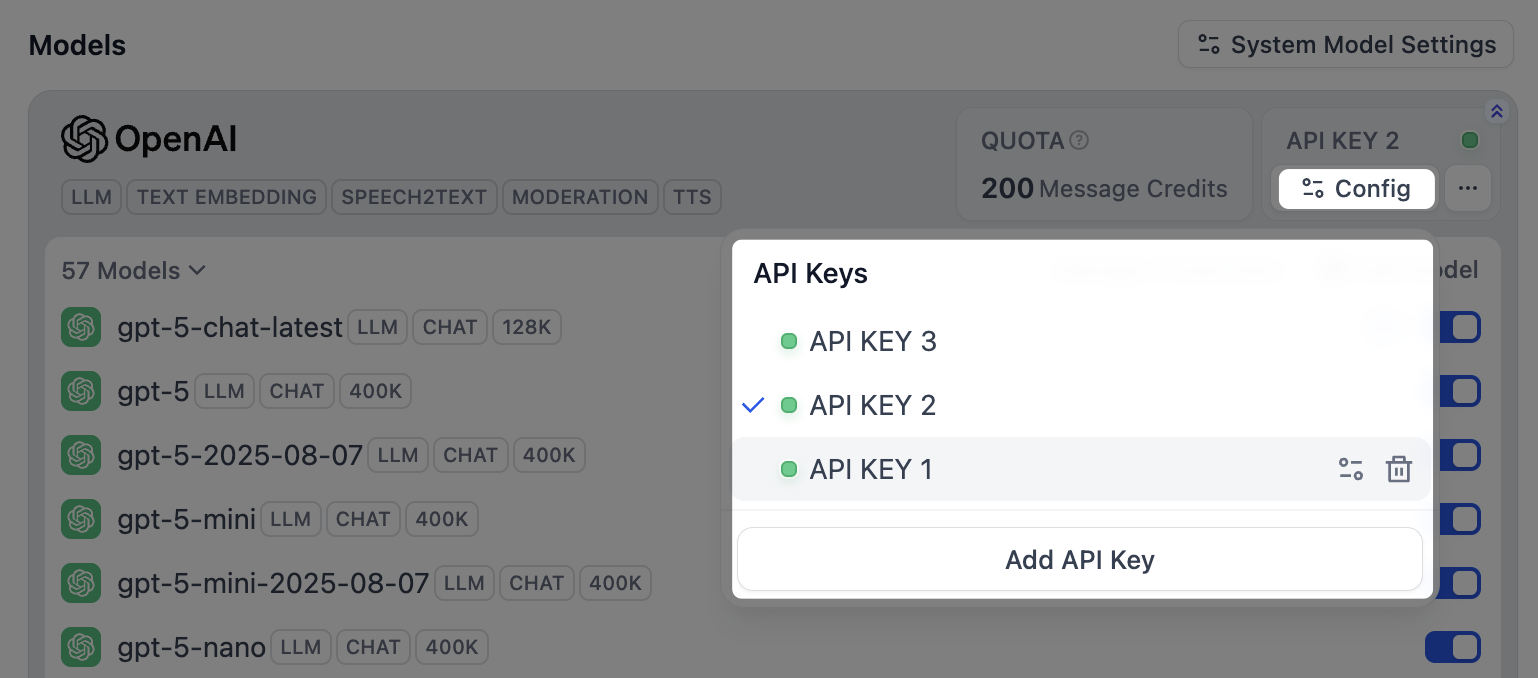
- Add a new credential
- Select a credential as the default for all predefined models
- Edit a credential
- Delete a credential
If the default credential is deleted, you must manually specify a new one.
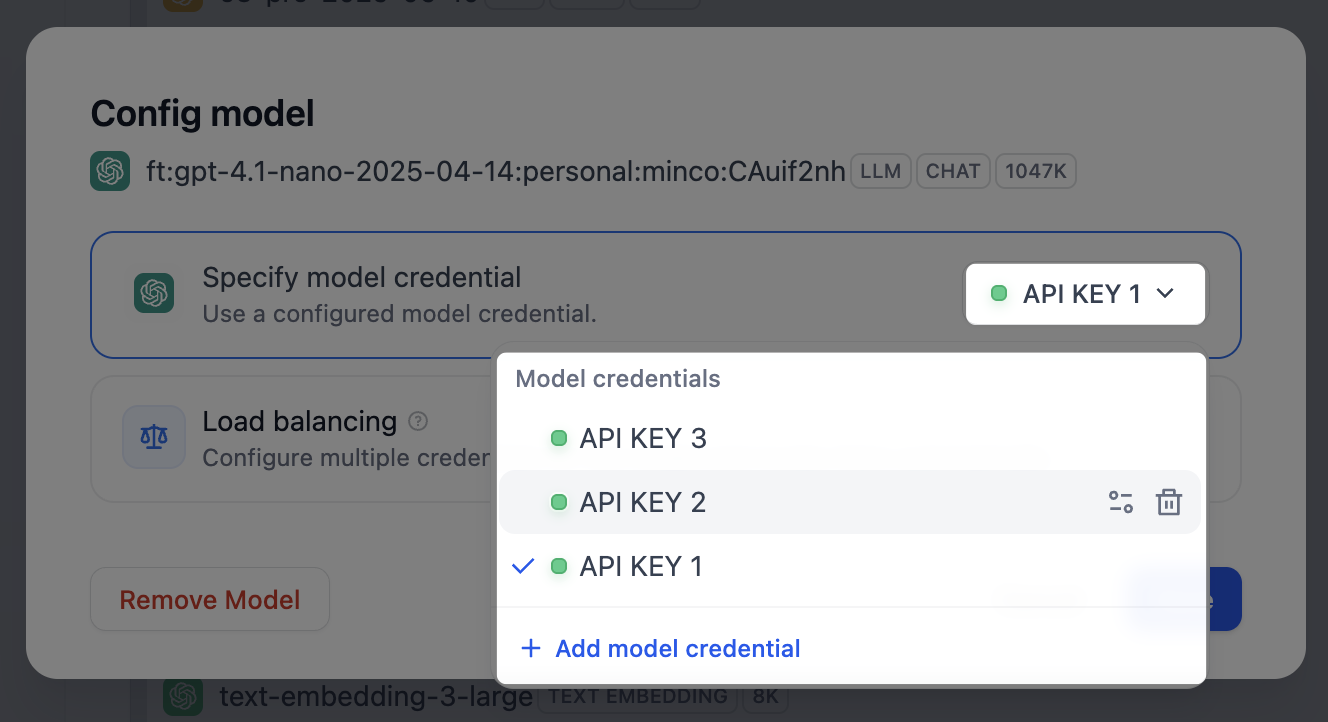
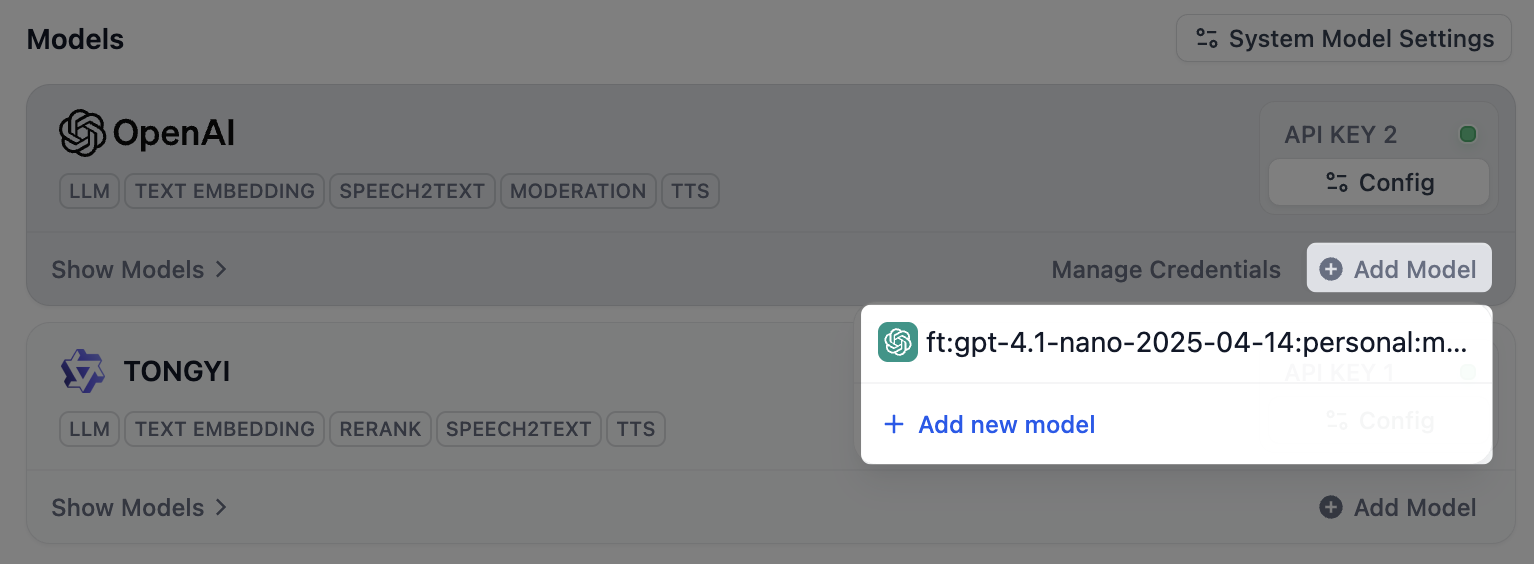
Configure Model Load Balancing
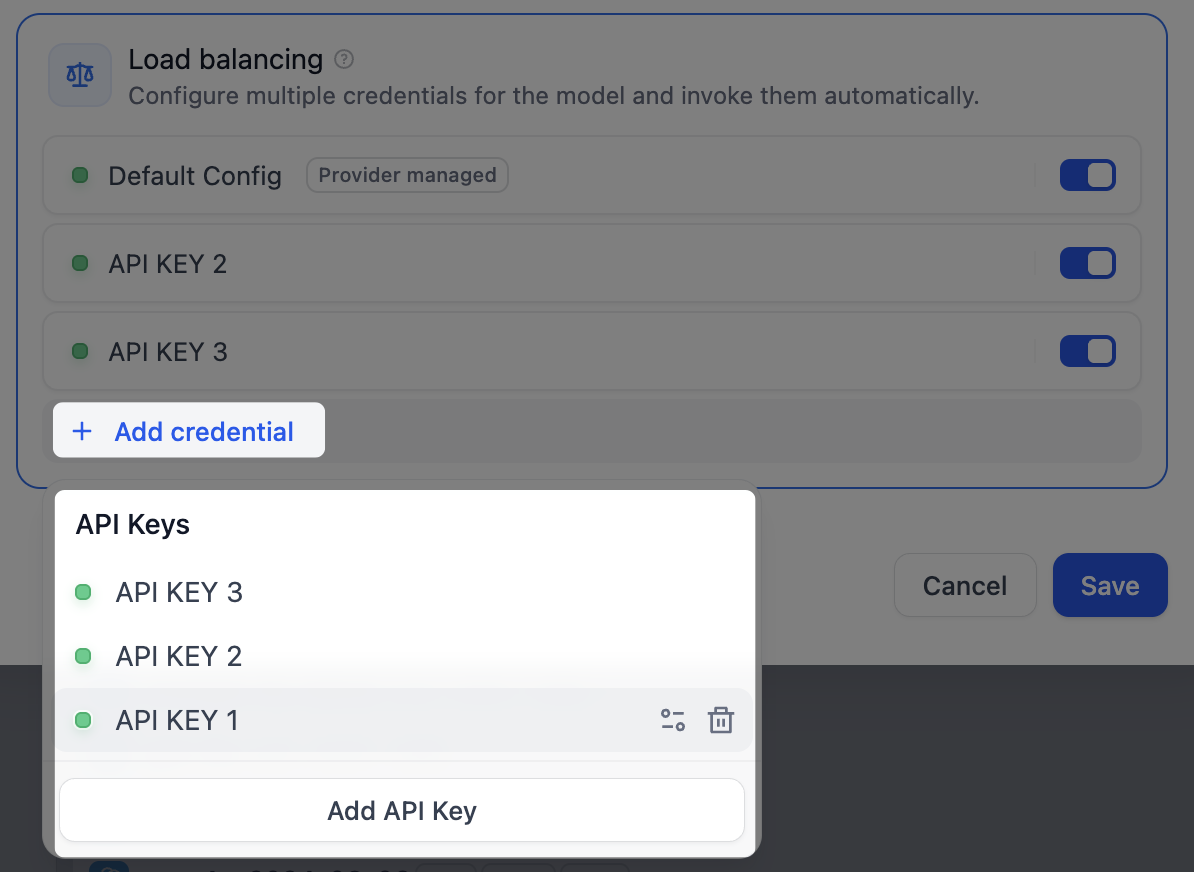
Model providers typically enforce rate limits on API access within a specific timeframe to ensure stability and fair use. For enterprise applications, a high volume of concurrent requests from a single credential can easily trigger these limits, disrupting user access. An effective solution is load balancing, which distributes request traffic across multiple model credentials. This prevents rate limit issues and single points of failure, ensuring business continuity and faster response times for all users. Intellos employs a round-robin strategy for load balancing, sequentially routing model requests to each credential in the load balancing pool. If a credential hits a rate limit, it is temporarily removed from rotation for one minute to avoid futile retries. To configure load balancing for a model, follow these steps:- In the model list, find the target model, click the corresponding Config, and select Load balancing.
-
In the load balancing pool, click Add credential to select from existing credentials or add a new one.
Default Config refers to the default credential currently specified for that model.
-
Enable at least two credentials in the load balancing pool, then click Save. Models with load balancing enabled will be marked with a special icon.

When you switch from load-balancing mode back to the default single-credential mode, your load-balancing configuration is preserved for future use.
Access and Permissions
Providers bill you directly through each provider (OpenAI, Anthropic, etc.). Team access follows workspace permissions:- Owners/Admins can configure, modify, and remove providers
- Editors/Members can view available providers and use them in applications