

Tools
Hands-On 1: Upgrade the Sub-process Area in Iteration
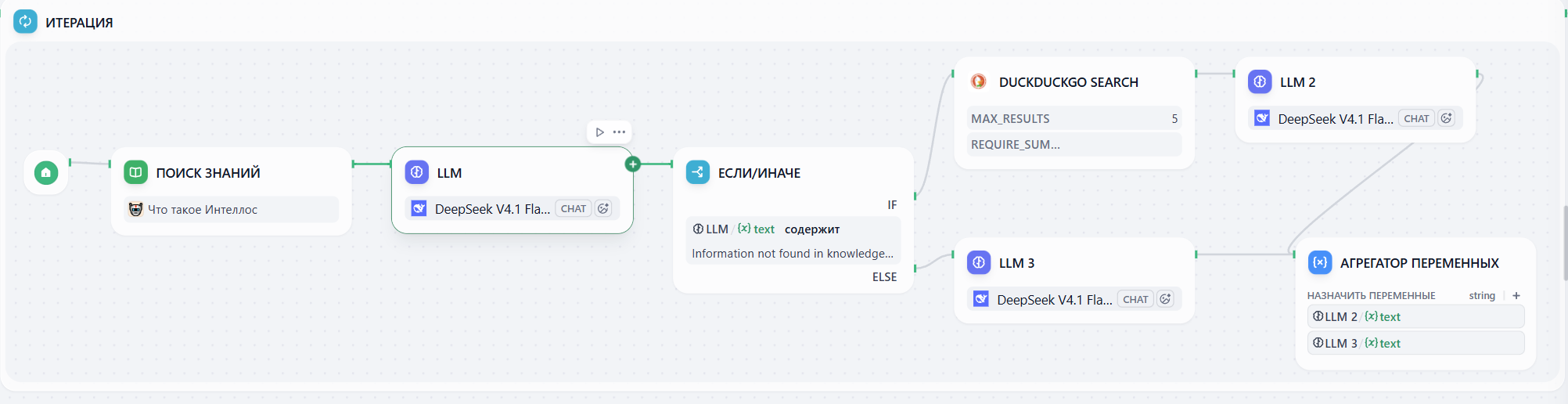
We are going to add a new logic to our assistant: Check the Knowledge Base first; if the answer isn’t there, search the web. To focus on the new logic, let’s keep only these nodes: User input, Parameter Extractor, and Iteration.Step 1: Knowledge Query and the Judge
1
Enter the Iteration
- Click to enter the sub-process area of the Iteration node.
- Keep Knowledge Retrieval node, and make sure the query variable is
{x} item. - Delete the previous LLM node.
2
Add the Judge (LLM Node)
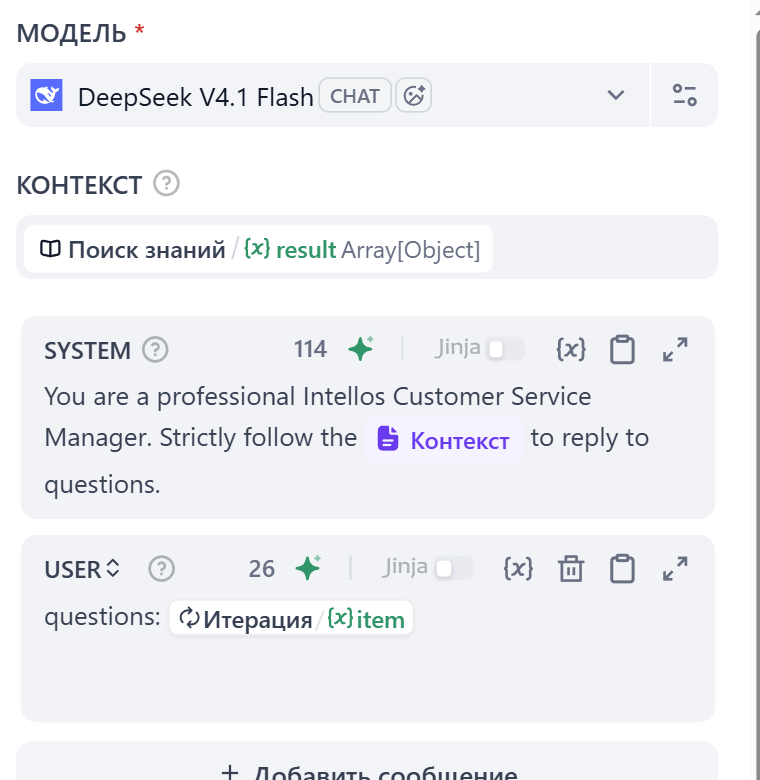
Add an LLM node right after Knowledge Retrieval node. Its job is to decide if the Knowledge Base info can actually respond to the questions.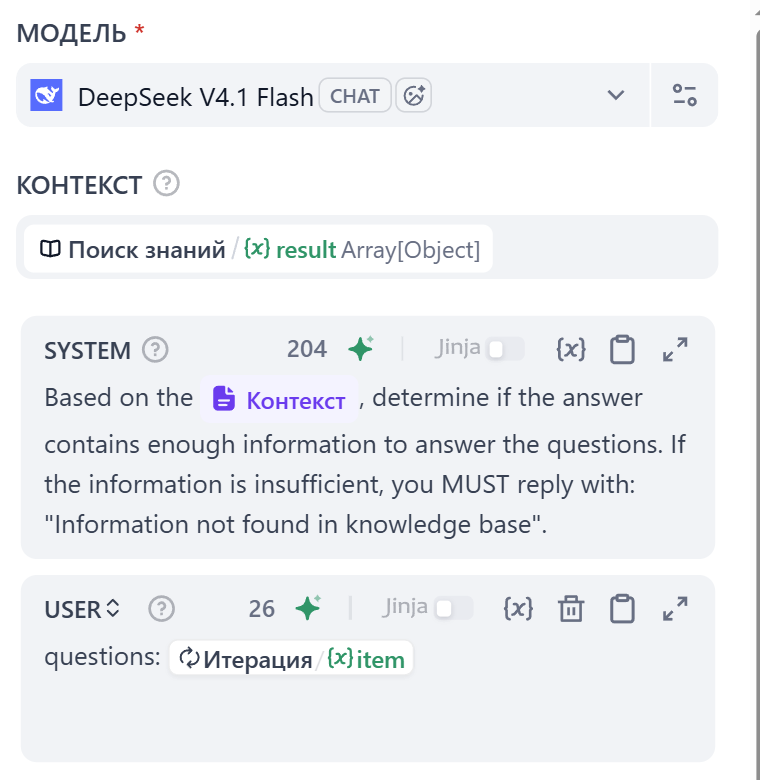
- For Context session: Select the
Knowledge Retrieval / {x} result Array [Object]from Knowledge Retrieval - System Prompt:
- User Message:
Step 2: Setting the Crossroads
1
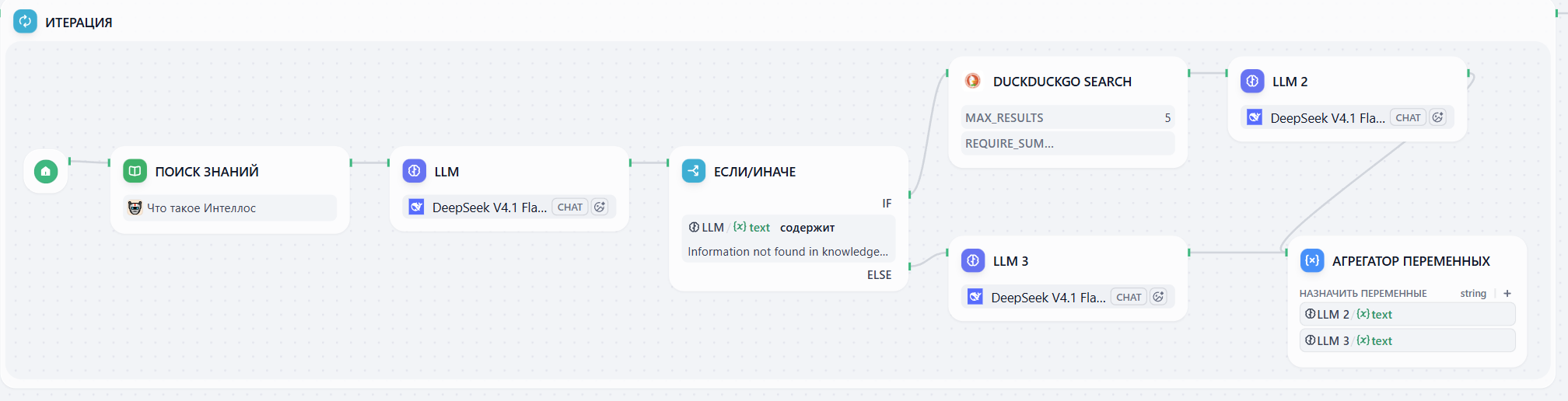
Add If/Else Node
After LLM node, let’s add If/Else node. Set the rule: If LLM Output Contains Information not found in knowledge base.This means, when we can’t respond with the information in knowledge base.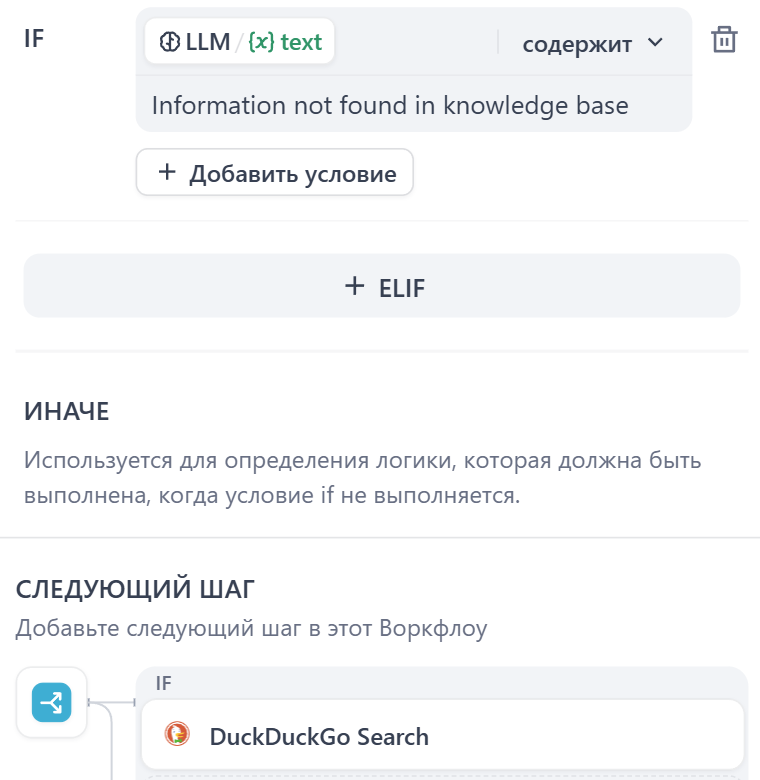
2
Add Tool for Searching
Let’s connect a search tool after the IF branch. This indicates that when the knowledge base cannot find relevant answer information, we use web search to find the answers.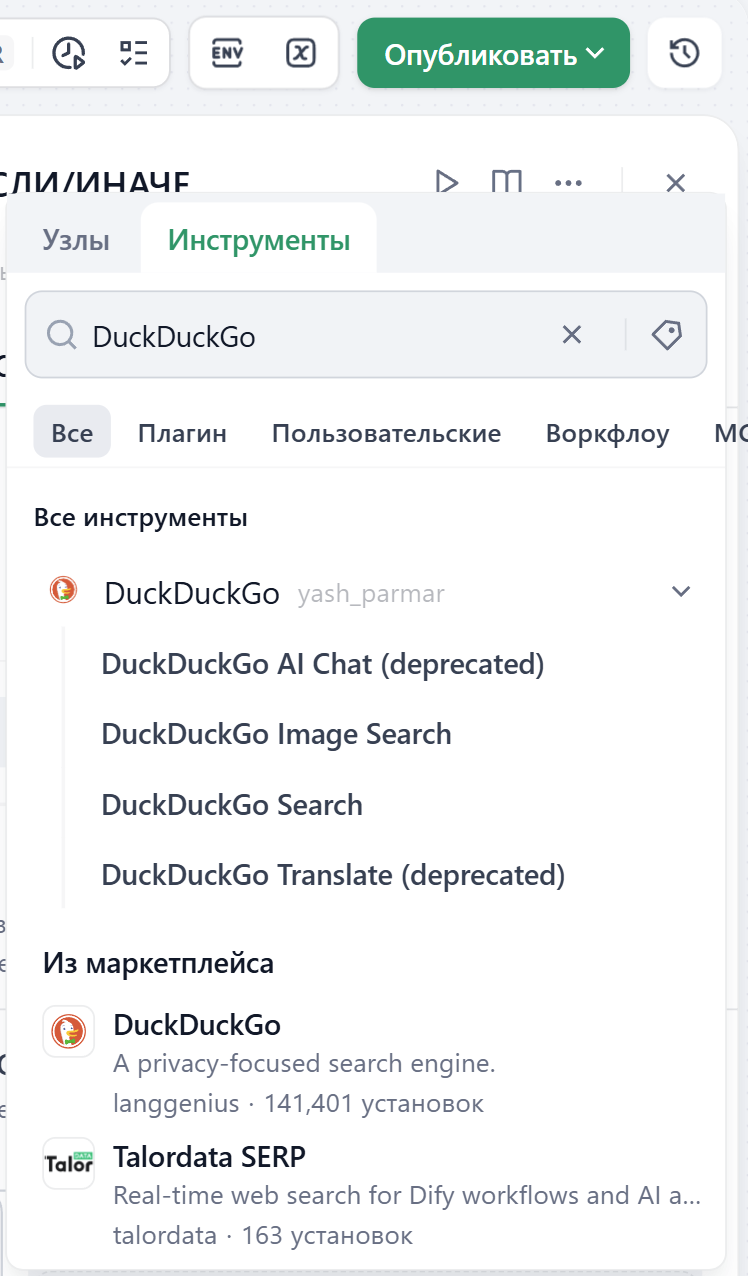
- After the IF node, click plus(+) icon and select the Tools tab.
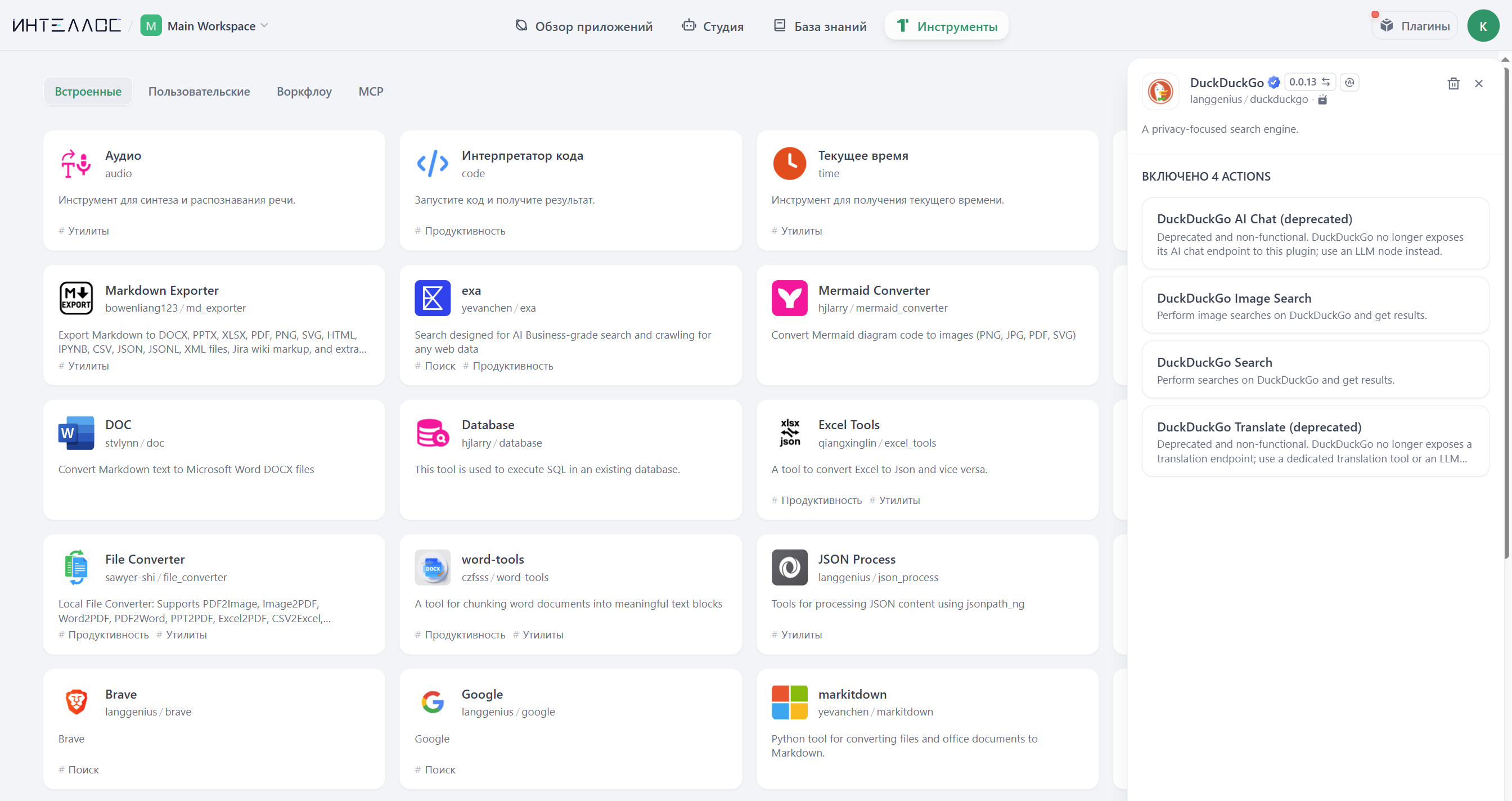
- In the search box, type DuckDuckGo. The DuckDuckGo plugin is available in Intellos out of the box and doesn’t require an API key.
3
Choose DuckDuckGo Search
Expand DuckDuckGo and click DuckDuckGo Search.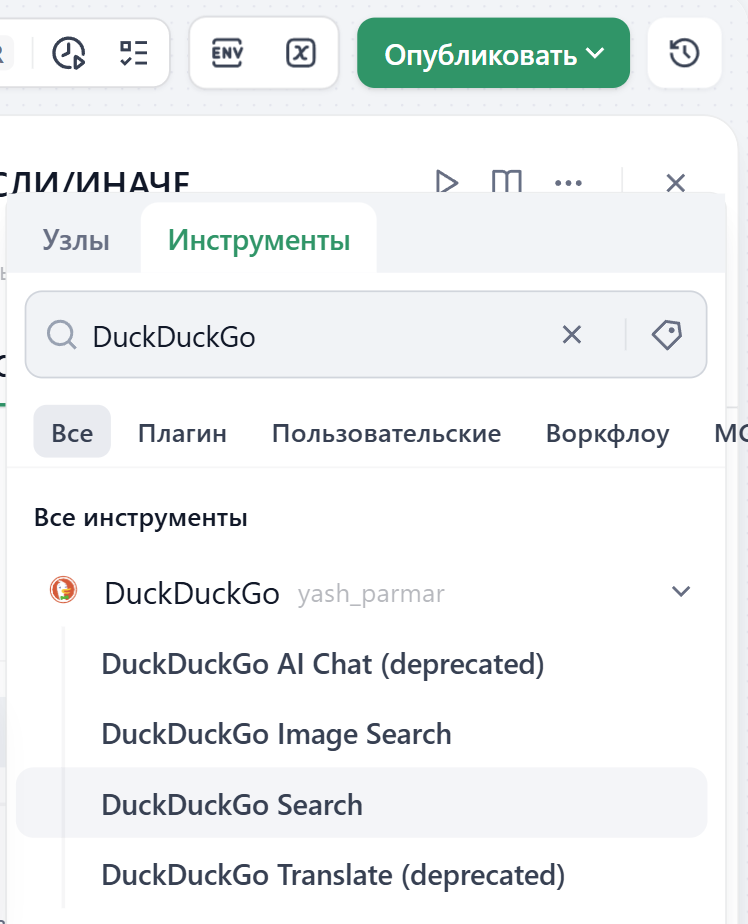
4
Set the Query
The tool’s settings panel opens right away. Head to the Query string field and select 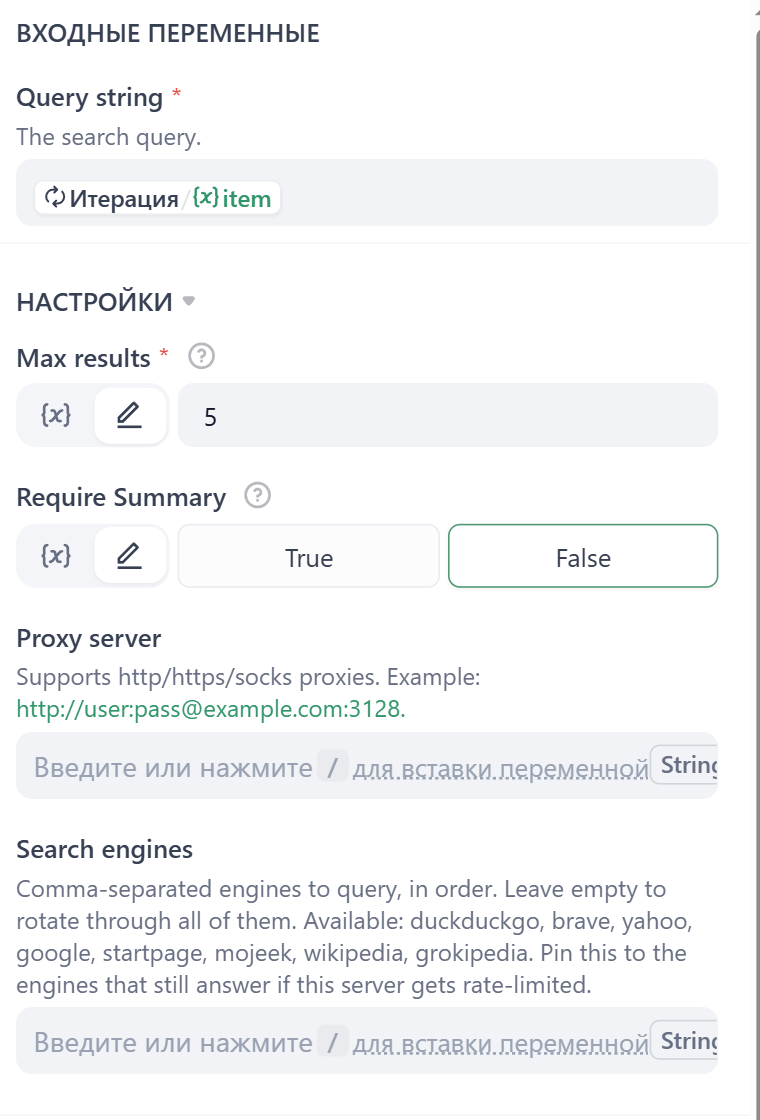
Iteration/{x} item. Keep the other settings at their defaults.Some search tools (for example, Google via SerpApi) require an API key. You add it once in the tool’s authorization settings; keep the key safe and avoid sharing it with others.
5
Configure the Two Paths
Now, we need different ways to answer depending on which path we’re looking at.The Search Answer PathAdd a new LLM node to answer the question based on the search results. Connect it to the DuckDuckGo Search node.System:User Message: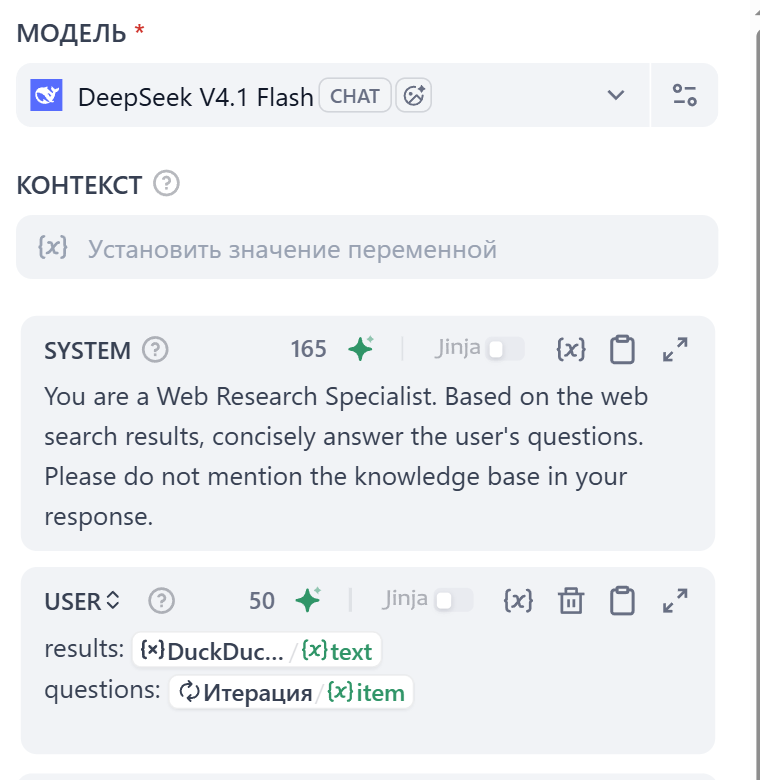 The Knowledge Searching PathAfter the Else node, add a new LLM node to handle answers based on the knowledge base.System:User Message:
6
Combine the Information
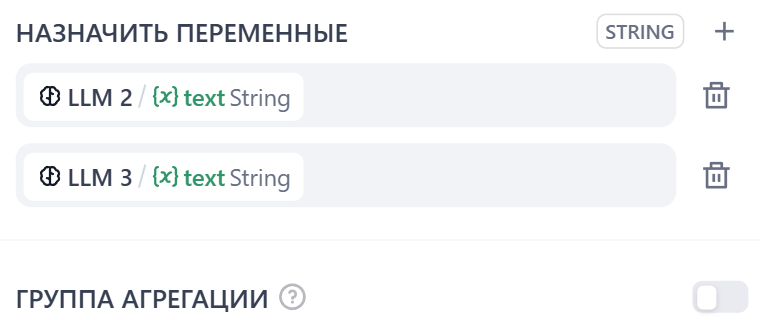
- In the sub-process (inside the Iteration box), add a Variable Aggregator node that connects both LLM 2 and LLM 3 at the very end.
- In the Variable Aggregator panel, select the variables
LLM 2/{x}text StringandLLM 3/{x}text Stringas the Assign Variables.
Step 3: The Final Email Assembly
Now that our logic branches have finished processing, let’s combine all the answers into a single, polished email.1
Configure Iteration Output
Click on the Iteration node, and set 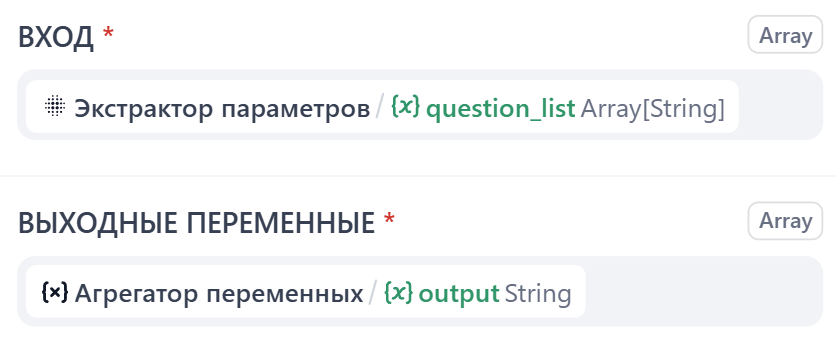
{x}Variable Aggregator/{x}output String as the output variables.2
Connect the Summary LLM
After the Iteration node, connect a new LLM node to summarize all outputs. Feel free to use the prompt below.System:User Message: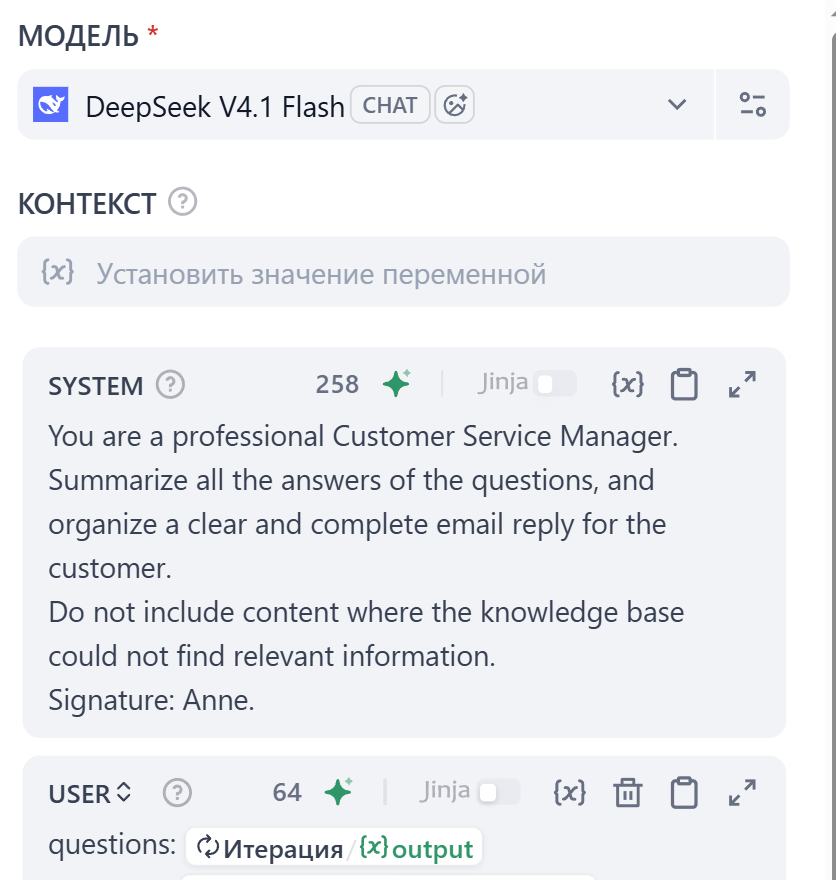
3
Finalize with the Output Node
After the LLM node, add an End node. Set the output variable as 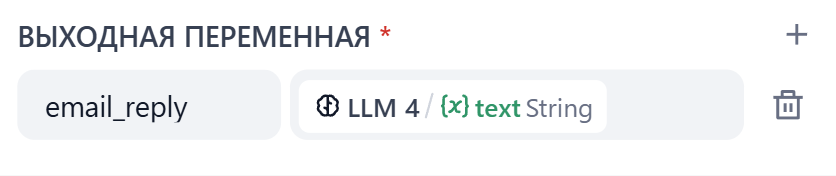
LLM 4/{x}text String.
Mini Challenge
- What are other conditions you can choose in If/Else node?
- Browse the Tools section to see if you can add another tool for this workflow?